How to Convert Multiple HEIC to JPG at Once (Free, 20 Files per Batch)
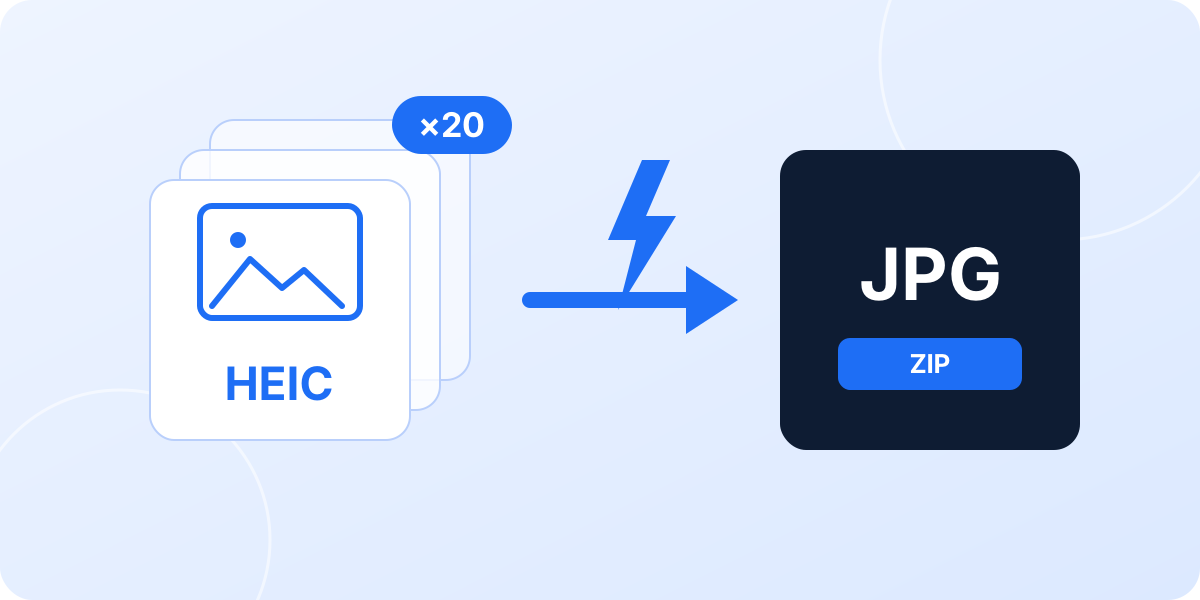
One HEIC file is never the problem. The trouble starts when you come back from a trip with a few hundred of them, or when a client asks for "the photos from Tuesday" and every single picture lands in their inbox in a format their Windows PC refuses to open. Converting those files one at a time is the kind of chore nobody finishes. This guide shows you how to convert multiple HEIC files to JPG in one go with a free online converter that takes 20 photos per batch and starts working the moment they land, and it also covers the desktop and command line options for people with thousands of files to process.
Open heicjpg.online, select or drag up to 20 HEIC photos into the upload box, wait a few seconds while each one converts by itself, then click "Download all (ZIP)". Repeat for the next 20. No account, no watermark, no convert button, and the originals on your phone stay exactly as they were.
Why converting many HEIC files is the real problem
Converting a single HEIC photo is a solved problem: almost any modern tool can do it. Volume is what hurts. Every iPhone has saved photos as HEIC by default since iOS 11 in 2017, so a normal camera roll now contains thousands of files in a format that Windows, older software and most web forms still treat as a stranger. When a wedding album, a property listing or a semester of lecture notes needs to go somewhere else, you are not converting one picture. You are converting a folder.
Many converters are quietly hostile to that job. Some accept one file at a time. Some let you queue several files but demand a click on a convert button for each of them. Some allow a small batch on the free tier and hide anything bigger behind a subscription. Others make you pick an output format, a quality setting and a resize option before anything happens, which is fine once and exhausting twenty times.
A converter built for multiple files should do six things: accept a whole selection in one drop, start without any configuration, show progress per file so you can see what failed, keep the original file names, keep full resolution and metadata, and hand you one archive at the end. That is the checklist this guide is measured against.
Convert multiple HEIC to JPG online with heicjpg.online, step by step
heicjpg.online was designed around batches rather than single files. The whole process takes under a minute for 20 photos and works the same way on a Mac, a Windows PC, an iPhone or an Android phone, because everything happens in the browser and on the server. Here is the complete procedure.
- Open heicjpg.online. Any browser works: Safari, Chrome, Edge or Firefox. There is nothing to install and no account to create.
- Select up to 20 HEIC photos at once. Click "Select HEIC photos" and pick a range with Shift click, or add individual files with Cmd click on a Mac and Ctrl click on Windows. If you prefer, drag the whole selection straight from Finder or File Explorer into the upload box. On an iPhone, tap the button and choose several pictures in the photo picker. The converter accepts .heic, .heif and .hif files up to 40 MB each.
- Let the conversion start by itself. The moment the files land, the batch begins. Each photo gets its own progress bar, converts at full resolution and takes roughly one second. There is no convert button, no format menu and no quality slider to worry about.
- Download everything as one ZIP. When the last photo finishes, a "Download all (ZIP)" button appears next to the individual download links. The archive contains every JPG with its original file name, so
IMG_4821.heiccomes back asIMG_4821.jpg. Click "Convert more photos" to start the next batch of 20.
What happens to your batch behind the scenes
Knowing how the batch is handled explains why it behaves the way it does, and why you can trust it with photos that matter.
- Photos are processed one after another. The uploads run as a queue rather than all at once. That sounds slower, but it is what keeps a 20 file batch reliable on hotel wireless or a mobile connection, and it means a single failed upload never takes the rest of the batch down with it.
- Full resolution, quality 92, EXIF kept. Nothing is resized or watermarked. The JPGs are written at quality 92, which is visually indistinguishable from the source for photographs, and the EXIF metadata travels with them: capture date, camera model, orientation and location data if the original had it.
- File names survive. Only the extension changes. If your album is sorted by file name before conversion, it is still sorted afterwards, which matters when you hand 20 listing photos to an agent or 20 receipts to an accountant.
- Each file can be up to 40 MB. A typical iPhone HEIC is 2 to 5 MB, and even 48 megapixel shots stay well under the limit, so the cap almost never gets in the way.
- Downloads stay available for 30 days. Every converted file lives behind a long random link that cannot be guessed. Convert on your phone now and fetch the ZIP on your laptop tonight; after 30 days the files are deleted automatically.
- Free, without an account. There is no premium tier that unlocks bigger batches, no email address to hand over and no watermark on the output.
Need to convert more than 20 HEIC files?
Batches can be repeated as many times as you like, so the 20 file limit is a rhythm rather than a wall. A hundred photos is five batches; two hundred is ten. The fastest way to work through a large folder is to sort it by date in Finder or File Explorer, select the first 20 with a Shift click, drop them in, download the ZIP, then select the next 20. Because each batch starts converting immediately and packs itself into a ZIP, most of the time is spent picking files rather than waiting.
Give each ZIP a moment to finish downloading before you click "Convert more photos". The links stay valid for 30 days either way, but keeping one archive per batch makes it easy to check that nothing was skipped: if you dropped 20 photos, the ZIP should contain 20 JPGs.
We recently raised the batch limit from 5 to 20 files, and we are not stopping there. Our plan is to offer batches of up to 100 HEIC files later in 2026. A 100 file upload puts real pressure on server memory and on the queue that keeps conversions reliable, so we are currently optimising the whole pipeline to make sure a batch of 100 stays as fast and dependable as a batch of 20. Until then, 20 photos per batch is the sweet spot between speed and reliability.
Other ways to convert multiple HEIC files to JPG
An online converter is the easiest route for most people, but if you regularly move thousands of files, a desktop tool that works on a whole folder can be worth the setup. Here are the options that actually handle batches well.
On a Mac: Quick Actions or Preview
macOS has had batch image conversion built into Finder since Monterey. Select any number of HEIC files, right click, choose Quick Actions and then Convert Image, pick JPEG and a size, and Finder writes the JPGs next to the originals. It handles hundreds of files without complaint. On older versions of macOS, open the photos in Preview, select all the thumbnails in the sidebar, then use File and Export Selected Images to save them as JPEG in one go.
On Windows: Photos, IrfanView or XnConvert
Windows 10 and 11 can open HEIC once the HEIF Image Extensions and HEVC Video Extensions are installed from the Microsoft Store, and the HEVC part usually costs about $0.99 because of codec licensing. Even then, the Photos app exports one picture at a time, which rules it out for batches. For real volume, IrfanView with its plugin pack has a Batch Conversion dialog that will turn an entire folder into JPGs, and XnConvert does the same with a friendlier interface. Both are free. Our guide to converting HEIC to JPG on Windows walks through each of them.
On an iPhone: stop the problem at the source
If you constantly need JPGs, change the camera format once and the batches disappear. Go to Settings, Camera, Formats and choose Most Compatible; new photos will be saved as JPEG from then on. To keep HEIC on the phone but get JPGs when you plug into a computer, go to Settings, Photos and set Transfer to Mac or PC to Automatic. Neither setting converts the photos you already have, which is where an online batch converter still earns its place.
On the command line: ImageMagick and libheif
For automation, ImageMagick's mogrify command can convert an entire directory of HEIC files to JPG in a single line, and libheif ships a small converter that does the same file by file inside a shell loop. Both are free and scriptable, and both assume you are comfortable in a terminal. They are the right answer for a nightly job that empties a camera folder, and the wrong answer for someone who just wants 20 vacation photos in a ZIP.
| Method | Files per run | Cost | Setup | Best for |
|---|---|---|---|---|
| heicjpg.online | 20 per batch, unlimited batches | Free | None, works in any browser | Everyday batches on any device, including phones |
| macOS Quick Actions | Hundreds | Free | None, built into Finder | Mac users with large folders |
| Windows Photos app | One at a time | Codec usually $0.99 | Two Store extensions | Occasional single files |
| IrfanView or XnConvert | Thousands | Free | Install plus plugin | Power users on Windows |
| ImageMagick | Unlimited | Free | Terminal | Scripts and scheduled jobs |
Tips for large batches
A few habits make multi file conversion painless, whichever tool you use.
- Convert copies, never originals. Uploading to a converter sends a copy; the HEIC on your phone is untouched. Keep the HEIC library as your archive, because it is about half the size of the same photos in JPG, and convert only what needs to travel. Our article on whether you should convert HEIC to JPG at all explains the trade in detail.
- Prefer a wireless or wired connection over mobile data. A batch of 20 iPhone photos is typically 60 to 100 MB of upload. It works fine over a mobile connection, but it is quicker and cheaper at home.
- Skip the screenshots. iPhone screenshots are already PNG, so they do not need converting and the converter will politely refuse them.
- Expect stills only from Live Photos and bursts. A HEIC container can hold a short video clip or a burst sequence. Conversion keeps the main still frame and drops the rest, which is what every JPG converter does.
- Count the ZIP. If you dropped 20 files and the archive holds 19, one of them was probably not a HEIC at all. The converter tells you on screen which files it skipped and why.
Frequently asked questions
How many HEIC files can I convert to JPG at once?
heicjpg.online converts up to 20 HEIC photos per batch, each up to 40 MB, and you can run as many batches as you need. A limit of 100 files per batch is planned for later in 2026.
Do I get one ZIP file or 20 separate JPGs?
Both. Every converted photo has its own download link, and once the batch is finished a "Download all (ZIP)" button packs every JPG into a single archive with the original file names.
Does batch conversion reduce the quality of my photos?
No. Every photo in the batch is converted at full resolution with JPEG quality 92, and EXIF metadata such as the capture date and camera model is preserved.
Can I convert multiple HEIC photos to JPG on my iPhone?
Yes. Open heicjpg.online in Safari, tap "Select HEIC photos" and choose several pictures in the photo picker. The conversion runs on the server, so the phone does not need any app.
What if I have hundreds of HEIC files?
Run several batches of 20, which takes a few minutes for a couple of hundred photos, or use a desktop tool such as Quick Actions on macOS, XnConvert or IrfanView on Windows, or ImageMagick on the command line.
Ready to convert your batch?
Drop up to 20 HEIC photos in and the conversion starts by itself. Full resolution, EXIF preserved, one ZIP at the end, completely free.
Convert multiple HEIC to JPG nowRelated articles
 How to Convert HEIC to JPG on Mac (5 Free Ways, No Apps)Your Mac already has everything it needs: a two click Finder action, Preview, Photos, and a one line Terminal command for hundreds of files. Plus the online route when the Mac is not yours.
 Best HEIC to JPG Converter in 2026: 12 Tools Tested and RankedOnline, desktop and built in converters compared on quality, speed, limits, privacy and price. One clear winner, and the smarter pick for every other job.
 The 7 Fastest HEIC to JPG Online Converters (2026 Ranking)We tested 7 popular tools and ranked them by real speed: clicks needed, auto start, ads and limits. See which converter wastes the least of your time.
 HEIC to JPG on iPhone: 6 Ways to Convert Your Photos (No App Needed)Convert in Safari with no app, use the four tricks built into iOS, or flip the setting that makes the camera shoot JPG. Exact taps for each.
 How to Change HEIC to JPG on Android: 7 Free Methods Ranked (2026)From the browser method that needs no app, through Google Photos, Samsung Gallery and Snapseed, to fixing the problem at the sender's iPhone. Ranked by speed and hassle.